
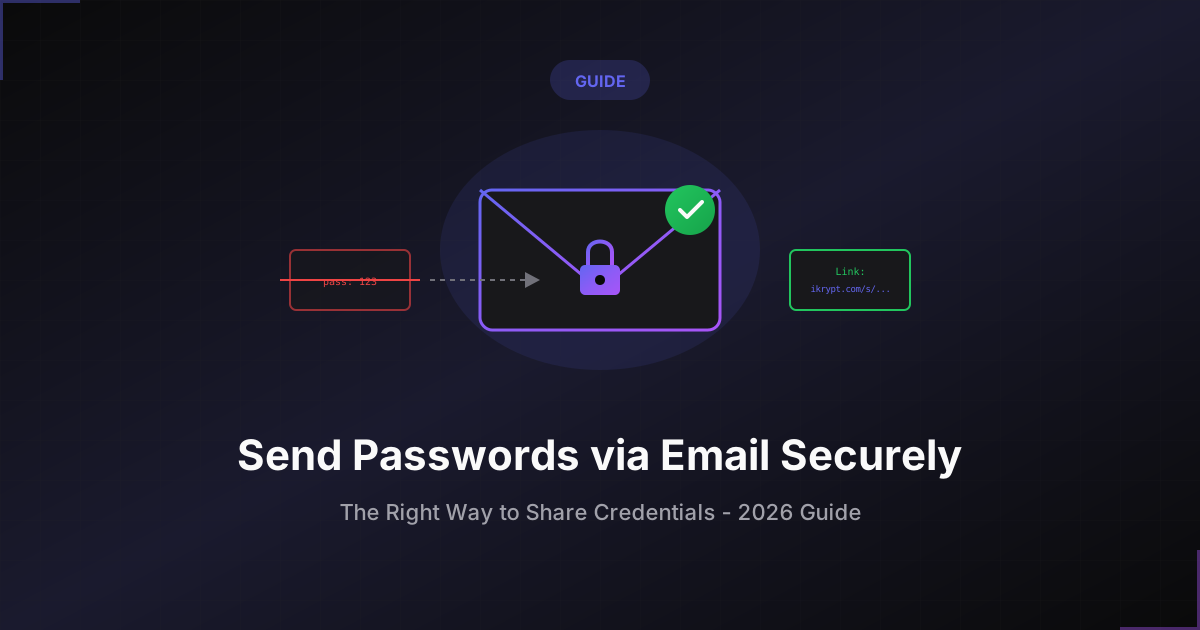
How to Send a Password via Email Securely (2026 Guide)
You need to send a password to a client. You open your email, type their address, paste the password, and hit send.
Congratulations. You just sent that password in plain text across the internet, where it will live forever in:
- Your sent folder
- Their inbox
- Both email servers
- Any email forwarding rules
- Cloud backups (Gmail, Outlook, iCloud)
- IT admin access logs
And if either account gets compromised? Hackers now have that password too.
In 2024, over 300 million passwords were exposed through email breaches alone. The average email account stores 1,247 messages containing sensitive credentials. Most people have no idea.
Why Email Is (Almost) the Worst Way to Share Passwords
Let's be clear: email was never designed for security. It was designed in 1971 for researchers to send text messages. Sending passwords via email is like:
- Mailing cash in a clear envelope
- Shouting your credit card number across a crowded room
- Writing your PIN on your debit card
The Journey of an Emailed Password
Step 1: Your Computer → Email Server
Password travels through your internet connection (hopefully encrypted), passes through your ISP's systems, and reaches your email provider's server.
Step 2: Email Server → Recipient's Email Server
Routed through multiple servers. May or may not be encrypted (depends on servers). Stored in server logs temporarily.
Step 3: Recipient's Server → Recipient
Sits in their inbox (often unencrypted). Indexed for search. Included in automated backups. Accessible to their email admin.
Step 4: Forever Storage
Never truly deleted (backups persist for years). Searchable by "password" keyword. Forwarded to others without your knowledge. Vulnerable to future breaches.
Real Numbers: How Bad Is It?
According to a 2024 Verizon Data Breach Report:
- 82% of breaches involved credentials
- 30% of phishing emails are opened
- 12% of those result in credential exposure
- Email breaches take an average of 207 days to detect
Translation: If you email a password today, there's a decent chance it will be compromised—and you won't know for 6+ months.
The 5 Biggest Email Password Mistakes
Mistake #1: Sending Username AND Password in the Same Email
Subject: Login credentials
Username: admin@company.com
Password: SecurePass123!
Why it's terrible: One compromised email = instant access. No second factor needed. Breach is undetectable (you don't know they used it).
Mistake #2: Using Subject Lines Like "Password for [Service]"
Bad subject lines: "AWS Password", "Database credentials", "FTP login info". Hackers who breach email accounts immediately search for these terms.
Mistake #3: Assuming "Encrypted Email" Is Actually Encrypted
Gmail/Outlook encrypt the CONNECTION (TLS), not the CONTENT. Your email provider can still read it.
Mistake #4: Forwarding Emails With Passwords
Email forwarding chains are invisible to you. You can't control who sees it after you send it.
Mistake #5: Never Expiring or Rotating the Password
The email becomes a permanent vulnerability that lives forever in multiple inboxes.
The RIGHT Way: Step-by-Step Secure Email Password Sharing
Method 1: One-Time Secret Link (Best for Most Cases)
- Go to a one-time secret tool (like iKrypt.com)
- Paste your password
- Set to expire after 1 view or 24 hours
- Copy the generated link
- Email ONLY the link (not the password)
Subject: Re: Access needed
Here's the link to the credentials:
https://ikrypt.com/s/abc123xyz
This link expires after you view it once.
Why this works:
- Password never appears in email
- Link expires after use
- No permanent storage
- You get notification when viewed
- Takes 15 seconds
Method 2: Send Password in Two Channels
Send username via email. Send password via Signal/WhatsApp/SMS. Requires breach of BOTH channels to be useful.
Quick Comparison
| Method | Security | Best For |
|---|---|---|
| Regular Email | 10/100 | Never use |
| One-Time Secret Link | 95/100 | Most cases |
| Two-Channel Split | 85/100 | High security |
| Temp Account | 95/100 | System access |
The 30-Second Secure Workflow
Instead of this:
Type password in email → Send → Exposed forever
Do this:
Create one-time link → Email link → Auto-deletes after viewing
Same time. 95% less risk.
Common Questions
"What if they don't click the link in time?"
Set expiration to 24-48 hours instead of "first view."
"Can I see when they viewed it?"
Yes, most tools offer optional notifications.
"Is this HIPAA/GDPR compliant?"
One-time secret links with encryption meet most compliance requirements.
The Bottom Line
Email was never designed for passwords. Stop using it that way.
The solution: Stop typing passwords in emails. Use one-time secret links. Same 15 seconds, 95% less risk.
Take Action Now
Send your next password securely. No signup. No storage. Just secure sharing in 10 seconds.
Create a One-Time Secret